
Table of Contents
Overview
Warehouse locations can be created in 3 ways:
-
Adding a single warehouse location - best when you only need to add a single warehouse location, for example, a bulk location.
-
Adding warehouse locations in bulk - if you need to generate racking locations.
-
Adding warehouse locations via export/import - if you need to generate an entire warehouse set of locations.
Important factors to note before creating warehouse locations:
-
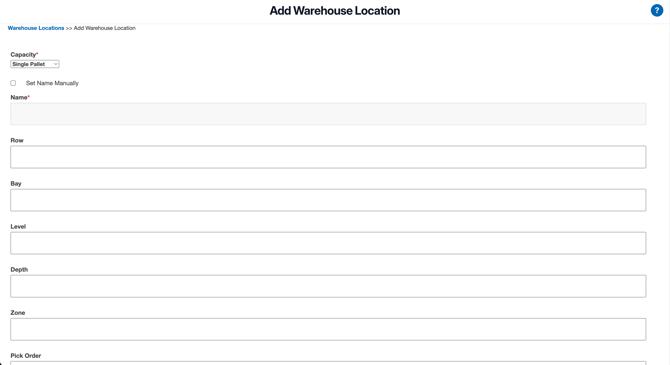
The Name field when adding a single pallet location is system generated. If you would like to manually populate the name you need to tick 'Set Name Manually'.
-
The Pick Efficiency field is important as this will help determine the location that CartonCloud selects stock from. The Pick Efficiency ranges from 1 (being the least efficient) through to 20 (being the most efficient). See How CartonCloud chooses outgoing stock - Stock Selection Methods for more information.
- The Pick Order field has no impact on stock selection, it will just determine the sequence the locations are shown on pick lists and the mobile app.
-
If creating a Pick Face (for Replenishment) you will need to select a Pick Efficiency between 21 and 30 (30 being the most efficient).
-
If you are printing labels with Warehouse Location Labels, the total number of characters that can be used in the Warehouse Location Name is 14. For Location names that require more than 14 characters, labels will need to be printed manually.
Adding warehouse locations
Adding a single warehouse location
-
Navigate to Warehouse Locations (Warehouse > Warehouse Locations).
-
Select +Add a Single Warehouse Location.
-
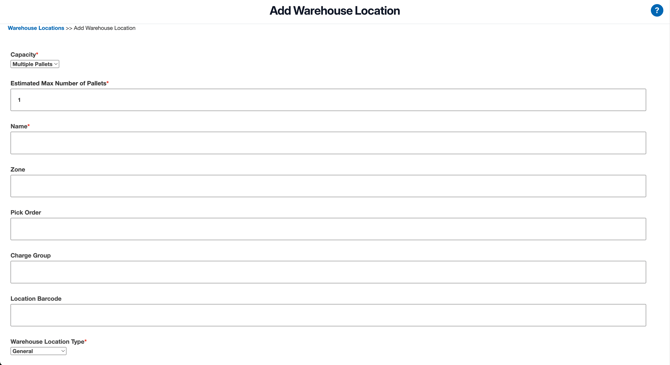
From the Capacity drop-down, select either Singlet Pallet or Multiple Pallets.
-
Complete the fields as required (refer to the Warehouse Location Fields guide if you are unsure what a particular field is for).
-
Select Create location.
-
A success banner will appear. By clicking on the banner you will be directed to the View Warehouse Location page and be able to see the newly created warehouse location.
For single pallet:
For multiple pallets:
Guided Video
Follow along with Vincent as he explains how to add a single warehouse location.
Adding Warehouse Locations in Bulk
-
Navigate to Warehouse Locations (Warehouse > Warehouse Locations).
-
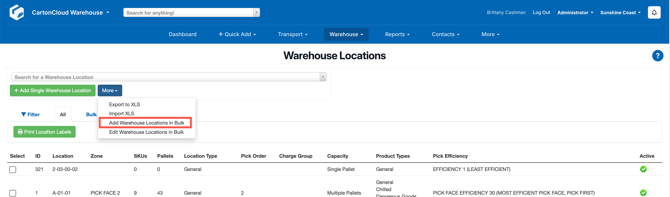
Select the More button and Add Warehouse Locations in Bulk from the drop-down menu.
-
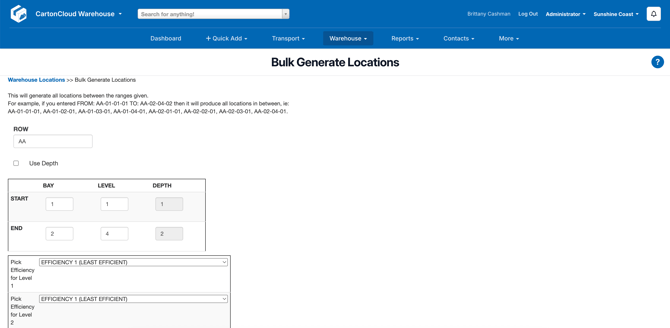
Enter the starting and ending Bay, Level, and (optionally) Depth.
-
Enter the Pick Efficiency for each Level.
-
Select the Warehouse Location Type.
-
Select the Product Types the Warehouse Location can accept.
-
Select Generate.
A success banner will display at the top of the browser informing you on how many locations were created. It is suggested you check this number against the number of locations you intended to create.
Guided Video
Follow along with Vincent as he explains how to add warehouse locations in bulk.
Adding Warehouse Locations via Export/Import
Before adding locations using this tool, we recommend adding at least one location using the "Add a single Warehouse location" method as this will populate the exported XLS file with an example location to reference.
-
Navigate to Warehouse Locations (Warehouse > Warehouse Locations).
-
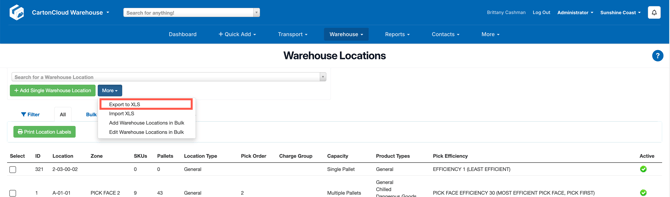
Select More and then Export to XLS from the drop-down menu.
-
Open the downloaded file using a spreadsheet program such as Excel.
-
Follow the same format as the current warehouse locations and add the new locations into the XLS template.
-
Ensure you leave the id column blank on all new records (as CartonCloud tries to override existing records if an id is provided).
-
Save the file.
-
From the Warehouse Locations page in CartonCloud, select More and Import XLS from the drop-down menu.
-
Select the XLS file you saved.
-
If the import is successful a success banner will be displayed. From here, scroll to the bottom of the confirmation page and click Confirm Import (if you do not, the changes to warehouse locations will not be applied).
If the import is unsuccessful due to an issue such as formatting, an Error banner will be displayed and the error will be described.
Guided Video
Follow along with Vincent as he explains how to add warehouse locations in bulk via export/import.
Pick Face Warehouse Locations (Replenishment)
If you are using Replenishment for any Products in your warehouse you will need to create Pick Face Warehouse Locations.
To create a Pick Face Warehouse Location:
-
Create Warehouse Locations following either of the three above processes, however, when selecting the Pick Efficiency ensure to select a PICK FACE EFFICIENCY level.
The Pick Face efficiency levels range from 21 being the least efficient through to 30 being the most efficient.