
Table of Contents
Purpose
Document Templates allow you to customise the documents produced by CartonCloud.
Benefits
-
Allows you to customise your documents to your customer's specifications and requirements. This enhances your Customer's experience.
-
You can create the Document Templates to best meet your operational requirements and workflows, reducing time and steps in the process.
Scope
You can customise the following documents in CartonCloud:
|
Name of Document |
Description |
|
Consignment Notes may be given to drivers to be signed manually if the app is unavailable. |
|
|
Proof Of Deliveries (PODs) may be automatically emailed to suppliers upon delivery of a consignment. |
|
|
Consignment Zebra (ZPL) Labels that is printed and placed on cartons/pallets. |
|
|
PDF Version of POP Labels that are printed and placed on the stock. |
|
|
Zebra (ZPL) version of POP labels that are printed and placed on the stock. |
|
|
Zebra (ZPL) version of POP labels that are printed and placed on the stock. This is used instead of the default POP ZPL if the customer has SSCC enabled. |
|
|
Purchase Order Verification List to be emailed and exported. |
|
|
Run Sheets may be exported to give to Drivers as a paper copy of their jobs |
|
| Sale Order Packing Slip and Sale Order Packing Slip (Per Item) | Sale Order Packing Slip may be automatically emailed to suppliers upon packing completion and also printed for viewing on delivery. It is also used when Downloading or Printing Aggregated Pack Slips from the Pack Screen. Sale Order Packing Slip (Per Item) is used when Downloading or Printing Per-Item Pack Slips from the Pack Screen. |
| Picking Lists may be given to the packer to pick and pack if the app is unavailable. | |
|
PDF Version of Sale Order Labels that are printed and placed on the stock. |
|
| Sale Order Zebra (ZPL) Labels that are printed and placed on the stock. | |
| Stocktake Count list used during a Stocktake. | |
|
Stocktake Variance list used during a Stocktake. |
How to add or modify a Document Template
You can edit a Document Template from either the Organisation or the Customer level. If you edit the template at the Organisation level, the template will apply to all Customers. If you edit the template at the Customer level, the template will only apply to that particular Customer.
The template is highly customisable; you can modify images , the layout, edit and add barcodes and add additional text using Placeholders. A Placeholder is a text that corresponds with data in CartonCloud. When the document is created, the placeholder pulls through the actual value of the corresponding data. For example, the Placeholder, $PICK_DATE$ would pull through data such as 17/12/2019.
The templates come prefilled with Placeholders, allowing you to easily modify the Placeholder using the list of available Placeholders.
Adding or modifying a Document Template at the Organisation Level
-
Navigate to the Document Templates page by typing Document Templates into the Search for anything bar.
-
Download the current default template of the relevant document by selecting the green Download button.
Once downloaded, these templates can be opened using Microsoft Word, Google Docs, OpenOffice or LibreOffice.
-
Edit the template as you see fit. Use the Placeholders to add or change the text.
-
Save the document.
-
Navigate back to the Document Templates page in CartonCloud.
-
Select Override or Upload (if no template is currently uploaded) for the relevant document.
-
Select Choose File, and select the relevant document.
-
Select Upload File.
Customers can also log in and create their templates. See Document Templates (Customer) for more information.
For the Sale Order Pick List and Purchase Order Verification List Document Template, you will need to select either PDF or XLS format from the Organisation Settings (More>Organisation Settings>Warehouse).
Adding or modifying a Document Template at the Customer Level
-
Navigate to the Customers page, Contacts>Customers.
-
Select the relevant Customer.
-
Select Edit.
-
Select the Template tab.
-
Navigate to the relevant document and select Download.
-
Edit the template as you see fit. Use the Placeholders to add or change the text.
-
Save the document.
-
Navigate back to the Document Templates page in CartonCloud.
-
Select Override or Upload (if no template is currently uploaded) for the relevant document.
-
Select Choose File, and select the relevant document.
-
Select Upload File.
New: You can now upload customer-specific versions of the Consignment Item Zebra Label, Consignment Zebra Label, and Sale Order Zebra Label directly from the Template tab in Customer Settings. When a customer-level template is set for these label types, it will be used in place of the organisation-level template for that customer only — including when printing via CartonCloud Connect. If no customer-level template is configured, the organisation-level template continues to apply.
Note: If no customer-level template is uploaded for a label type, the system will automatically fall back to the organisation-level template. Existing customers with no customer-specific template set will see no change in their label output.
Testing Template
To view a template you have modified, click the document link next to the words Current Template.
Editing Images
Customers can have a logo added to their account, which can then be automatically inserted into the Template where you see the words 'Customer Logo'.
Logos can be added to customers directly from the Customers View page.
Editing and adding Barcodes
To add or modify a barcode that will appear on the template:
To modify:
-
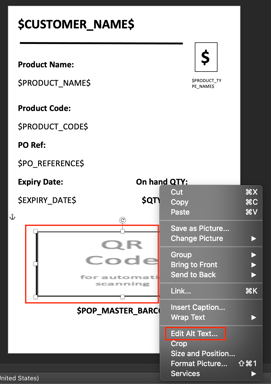
Select the QR Code image on the default template.
-
Right-click on the image and select Edit Alt Text.
-
Enter the field name you wish to represent in the barcode followed by a colon, then select from the three barcode formats below. For example, $PRODUCT_BARCODE:BC128$
Barcode Suffixes
-
BC39
-
BC128
-
QRCODE
If you wish to add another barcode, copy and paste the QR Code image and repeat the above steps.
Generate Barcodes Using Multiple Placeholders, Fixed Values, and Formatted Page Numbers
Note: This functionality is currently available for Consignment Labels (PDF) only.
The Consignment Label PDF document template now supports generating barcodes using a combination of:
- Multiple placeholders
- Fixed values
- Formatted page number placeholders
Barcode Rules
- The entire barcode value must be enclosed in
$$ - Fixed values must be enclosed in
{} - Placeholders must be separated using
|
Page Number Padding Format
PAGE and PAGES placeholders can be padded to a fixed length using the following format:
PAGE0L3
Where:
0= padding characterLorR= left or right padding3= total length of the formatted value
Examples
| Input | Result |
|---|---|
PAGE0L3 |
001 |
PAGES0L3 |
003 |
Example Barcode
J15355001003CC0000090617
Breakdown
| Value | Description |
|---|---|
J1 |
Fixed value ({J1}) |
5355 |
TO_CODE placeholder |
001 |
PAGE padded left with 0 to 3 characters |
003 |
PAGES padded left with 0 to 3 characters |
CC0000090617 |
BARCODE placeholder |
Document Template Example
Add the following placeholder to the Alt Text field of the image:
${J1}TO_CODE|PAGE0L3|PAGES0L3|BARCODE:BC128$