Table of Contents
- Overview
- Prerequisites
- Limitations
- Cost
- How to create a Self-Managed WooCommerce Integration
- Disconnecting a Self-Managed WooCommerce Integration
- Editing a Self-Managed WooCommerce Integration
- Managing a Self-Managed WooCommerce Integration
Overview
Self-Managed Integrations allow you to create and manage integrations directly within your CartonCloud account.
With the Self-Managed WooCommerce Integration, orders in WooCommerce will automatically create Outbound Orders in CartonCloud when the WooCommerce order reaches Processing status. Once the CartonCloud Outbound Order is Dispatched, the WooCommerce order will be updated to Completed.
If the WooCommerce store has a Shipment Tracking plugin installed and activated, CartonCloud will also send shipment tracking updates back to WooCommerce when the Outbound Order is moved to Packed or Dispatched, or when consignment tracking details are updated.
You can configure the integration yourself or you can have your customer set the integration up from their CartonCloud login. See How to enable Customers to create their own Self-Managed Integrations.
Prerequisites
- This is a paid integration, please ensure you read the included costs below.
- Your customer must have a WooCommerce account.
- The customer must create a new WooCommerce REST API key with Read/Write permissions to allow CartonCloud to create orders, update order statuses, and send shipment tracking information.
- The Product SKU in WooCommerce must match the product codes in CartonCloud.
- The Customer in CartonCloud must have access to the Warehouse the orders are being mapped to from WooCommerce. .
- If you are a Customer user, you must ensure your CartonCloud account owner has given you permission in your account to create your own Self-Managed Integrations. Please reach out to your account owner for this access.
Limitations
- Changes to WooCommerce orders (e.g item quantity changes) will not be made in CartonCloud. Once CartonCloud has the order from WooCommerce, the order will not be updated if the order is changed within WooCommerce.
- Deleting a Sales Order in WooCommerce does not notify CartonCloud.
- Dates and datetimes are not converted between time zones.
- Mapping of requested batch numbers is not supported.
- Pickup orders are not currently supported. If this is important to your workflow, please reach out to the Service Desk team to discuss a possible workaround.
Cost
We offer volume-based discounts—reach out to our support team here to discuss pricing options.
How to create a Self-Managed WooCommerce Integration
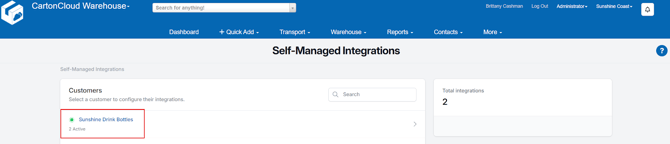
- Navigate to the Integrations page by typing in Integrations in the Search for Anything bar or More>Self-Managed Integrations.
- If an Admin user, select the customer you wish to create the integration for.
- Select WooCommerce from the Self-Managed Integrations menu selection.
- Click Configure.
- The configuration box will now appear, follow the below steps to configure the integration.
(1) Initial Configuration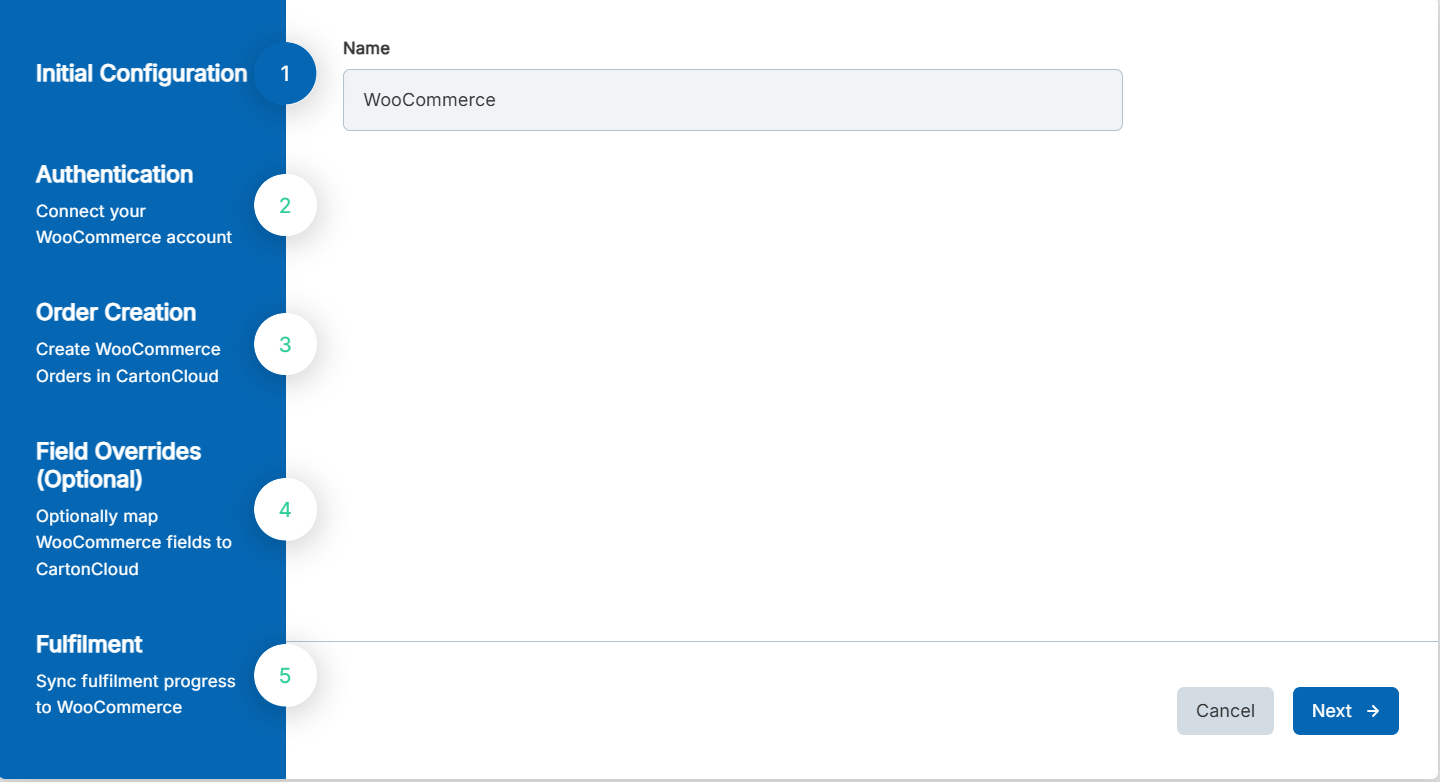
- Fill in the Name field.
- Click Next.
(2) Authentication
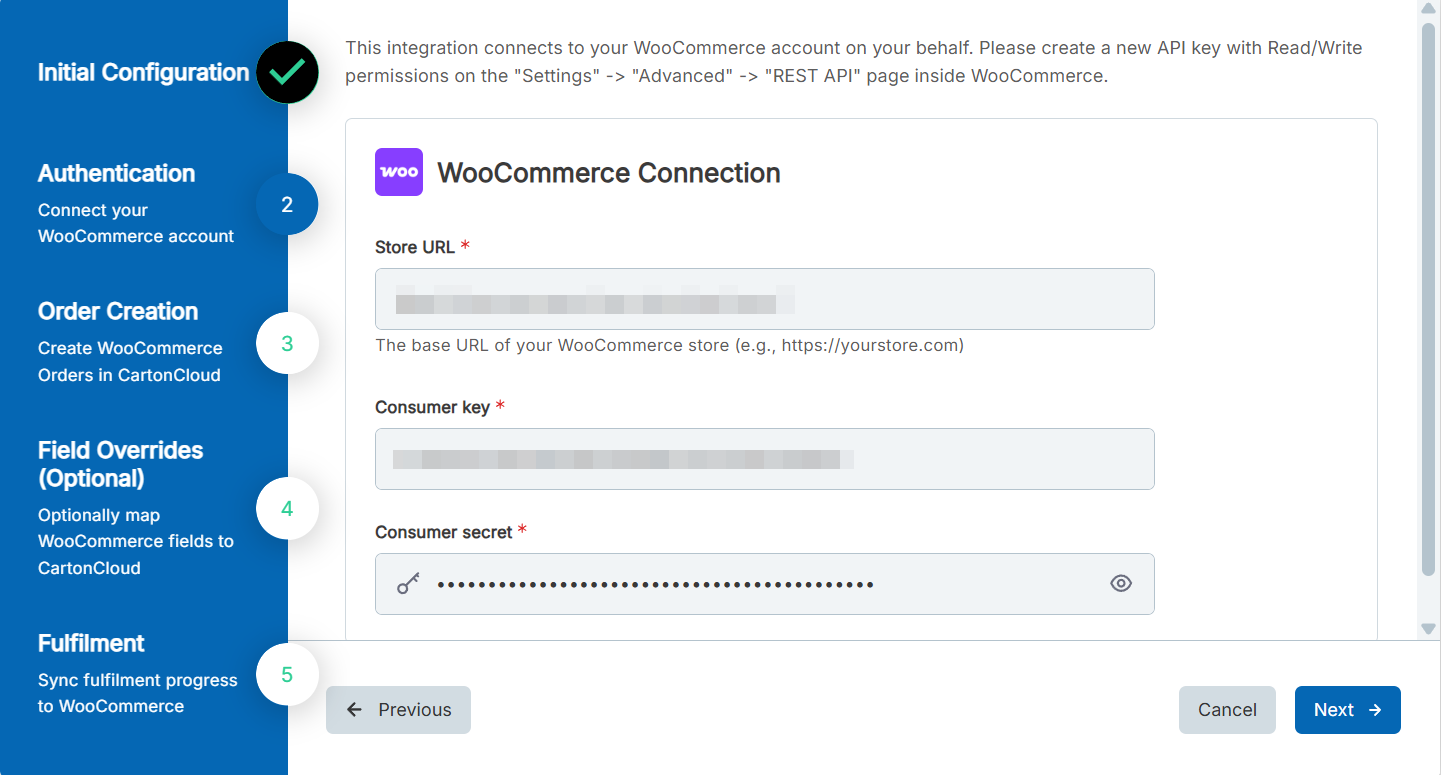
- You will now need to connect CartonCloud to WooCommerce.
- In the Store URL field, enter the base URL of your WooCommerce store.
- Enter your Consumer Key and Consumer Secret.
A new REST API key can be created in WooCommerce by going to WooCommerce → Settings → Advanced → REST API, clicking Add key, selecting Read/Write permissions, and generating the key.
- Click Next.
(3) Order Creation
- Here you will need to assign a CartonCloud warehouse for where your WooCommerce orders will go to.
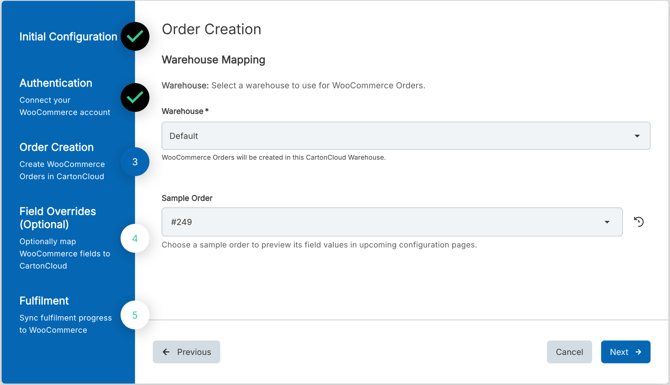
- Sample Order: Use the Sample Order selection to choose a recent WooCommerce order. The fields from that order, including the sample value, are then available to map on the next page. Leave the value as none if you do not wish to map specific field overrides and just want to use default integration mappings.
- Click Next.
(3) Field Overrides (Optional)
-
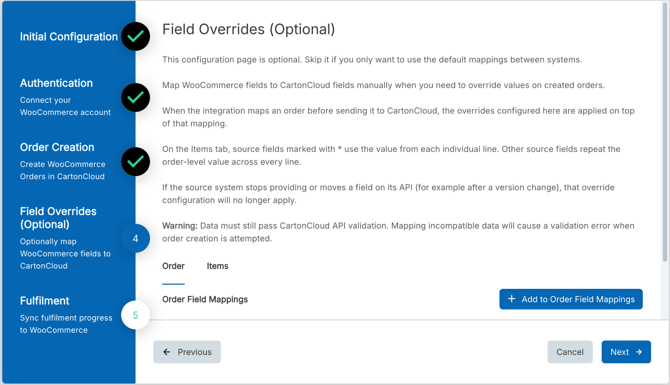
This page is optional. Click Next to continue with the default mapping only.
-
The page has two tabs.
-
Order - Add mappings that set values on the CartonCloud Sale Order.
For example, Packing instructions, Delivery instructions, Required delivery date, Customer reference, Urgent, Requested shipping service, Delivery method type (Shipping or Pickup), and any enabled Sale Order custom fields.
If there is an API Sale/Outbound Order field you wish to override that is not listed please let our support team know so we can consider adding it. -
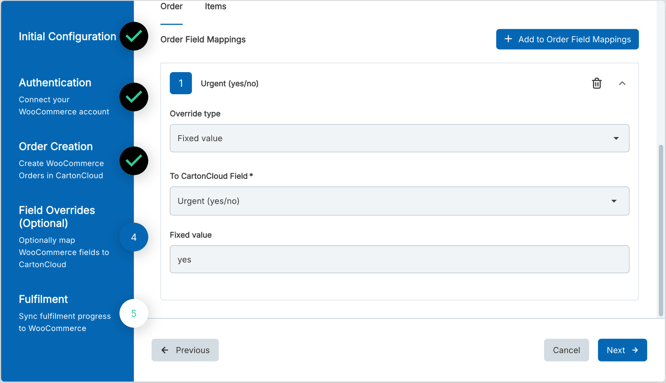
Items - Add mappings that set field values on each item of the Outbound Order.
-
-
Source fields marked with * use the value from that line. Other source fields use the order-level value on every line.
-
For each mapping, choose an Override type:
- Map from source field: copy a WooCommerce field into the CartonCloud field.
- Fixed value: send the same fixed value on every order.
- Advanced source mapping: optionally extract part of the WooCommerce value, and optionally replace specific WooCommerce values with different CartonCloud values.
-
If WooCommerce stops sending a mapped field, or the field is moved, that mapping will no longer apply.
Mapped values must still pass CartonCloud API validation. If a value is not valid for that field, order creation will fail for that order. A mapping is also skipped, and the order is still created, when there is no usable value. This includes a blank source, an extract that does not match, Urgent set to something other than yes, no, true, false, 1, or 0, Delivery method type set to something other than SHIPPING or PICKUP, or a date that cannot be read as YYYY-MM-DD.
-
Click Next.
(4) Fulfillment
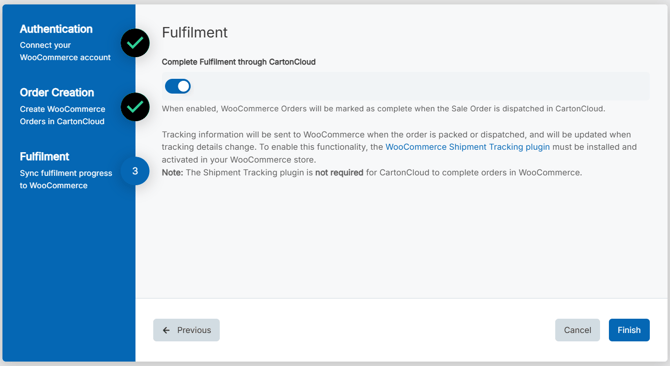
- Complete Fulfilment through CartonCloud: when enabled WooCommerce Orders will be marked as complete when the Sale Order is dispatched in CartonCloud.
- Tracking Information: Tracking information will be sent to WooCommerce when the order is packed or dispatched, and will be updated when tracking details change.
To enable this functionality, the WooCommerce Shipment Tracking plugin must be installed and activated in your WooCommerce store. Note: The Shipment Tracking plugin is not required for CartonCloud to complete orders in WooCommerce.
- Click Finish.
Disconnecting an existing Self-Managed WooCommerce Integration
If you need to cancel and disconnect the integration you will need to:
- Navigate to the Integrations page.
- Select the relevant Customer.
- Click WooCommerce.
- Select the three-dot configuration icon and select Delete Integration.
- This will remove the integration and stop the billing of the integration to your account.
Editing an existing Self-Managed WooCommerce Integration
To edit an existing Self-Managed WooCommerce Integration:
- Navigate to the Integrations page.
- Select the relevant Customer.
- Click WooCommerce.
- Select Reconfigure.
Managing Self-Managed Integrations
Because Self-Managed Integrations are a paid feature, it is important you are able to manage and keep track of the number of active integrations your customers have. This is useful if you wish to pass on the cost to your customer and reconcile your invoices.
If a Customer has a live integration they will have a green dot icon against their name. It will also display the number of active integrations for that customer below their name.