Table of Contents
Purpose
The Warehouse Stock Report is used to track the inventory of all Products stored in the given Warehouse that the report is being run on.
Where to find the Stock Report
Select Reports > Stock Report.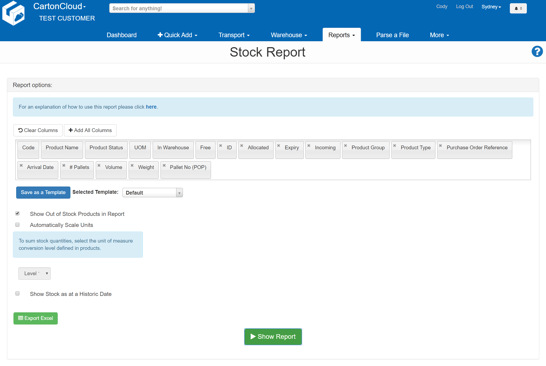
- Various columns can be selected to add the desired details on Warehouse Inventory. The available columns are covered in the section below.
- To add all possible Fields to the report select the +Add All Columns button.
- Once you are ready to run the report you can select Show Report for it to display within the browser or Export Excel to download an XLS file.
- Your report will be run in the background and when is it ready to download will show up in the top right-hand corner under Notifications.
Further Details
Report Template
If there are particular fields which you regularly run reports on these can be saved as a template by selecting the Save as a Template button. For more information see the Creating Report Templates article.
Report Columns
There are a number of default columns that can be added to the Warehouse Stock Report plus any custom fields. The custom fields may include for instance Batch or Lot Numbers and other useful information. The below table lists the default columns that are always available in the report and what they mean. The several of the default columns are "locked" columns. This means that they cannot be removed from the report. They can only be sorted in your desired order.
|
Column Name |
Locked |
Description |
|
Code |
Yes |
The code of the Product line |
|
Product Name |
Yes |
The name of the Product line |
|
Product Status |
Yes |
The status of the Product line |
|
UOM |
Yes |
The Unit Of Measure of the Product line |
|
In Warehouse |
Yes |
The amount of stock in the Warehouse of the Product line. This amount is a sum of both Allocated and Free columns |
|
Allocated |
No |
The amount of stock of the Product line that has been allocated to Sale Orders |
|
Free |
Yes |
The amount of stock of the Product line that has not been allocated to Sale Orders |
|
Incoming |
No |
If the Incoming column is part of the report, then the amounts of any stock on Purchase Orders with status of "Not Yet Received" or greater and which have stock that is not yet allocated to a Warehouse Location will appear in this column on the Report |
|
ID |
No |
The ID of the Product line |
|
Expiry |
No |
The set Expiry Date of the Product line |
|
Pallet ID |
No |
If the Product line is stored in a bulk Warehouse Location, then it will show a Pallet Id representing what Pallet it resides on in that Warehouse Location |
|
Product Group |
No |
The Product Group of the Product line if any |
|
Product Type |
No |
The Type of the Product line |
|
Purchase Order Reference |
No |
The reference of the Purchase Order that the Product line belongs to |
|
Arrival Date |
No |
The arrival date of the Purchase Order that the Product line belongs to |
|
# Pallets |
No |
The number of pallets at the given Warehouse Location |
In addition to the above fields, there are also custom fields that will appear. Both Purchase Order Product and Product custom fields will appear as options on the Report. If the custom field is a Purchase Order Product custom field it will have (POP) after the field name. Similarly, for Product custom fields there will be a (P) after the field name. This allows you to recognise the difference between fields that may have the same name.
Report Column Sorting
The Warehouse Stock Report columns can be dragged and dropped in the order desired by simply clicking and dragging a tag to the desired position in the column order. Note that dragging fields to different places in the column order will result in slightly different results being displayed in the report as these options are also used to split the Product lines.
Report Options
There are several options in the Report that alter the result that is displayed or exported. The below table lists the options and explains what change they have on the Report.
|
Option |
Description |
|
Show Out of Stock Products in Report |
If this option is checked then you will both in stock and out of stock products appear in the report. NOTE: If you export the report to excel with this option set then you will get an excel file that has a sheet for In stock products and another sheet for Out of stock products |
|
Automatically Scale Units |
This option will make all stock counts showing in columns "In Warehouse", "Allocated", "Free", and "Incoming" in their highest possible unit of measure conversion (eg. If the Product line's highest unit of measure is a Pallet, then the counts shown in the report will be in Pallets with this option checked). See below for a way to scales to other UOM levels. |
|
Show Stock as at a Historic Date |
Checking this option will show a date field to choose which date you want to see stock for |
|
Specify Date |
This field appears if "Show Stock as at a Historic Date" is checked. You can enter the date you wish to see the historic data for in this field |
There is a great feature in the Stock Report where a user can create a stock report at a specific unit of measure level. e,g. if my base unit of measure is units, I also have a unit of measure conversion from units to cartons , then a second level cartons to pallets, I can run a report and sum at any level. This means if I run a report at the carton level (level 2 in my example), then the report will return stock on hand quantities summed at a carton level or combination of cartons and units.
To create this specific report, simply tick the box for 'Automatically Scale Units', use the drop-down arrow to select the unit of measure level for the report, click on Show Report.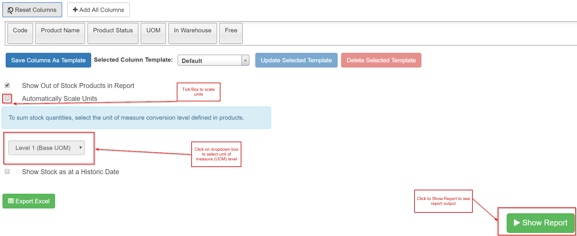
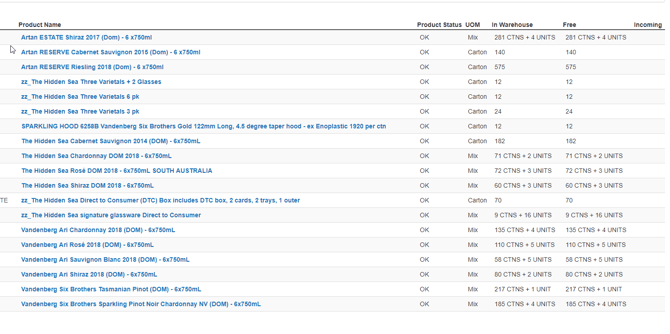
The resulting output would look similar to this report. you can then export this to a spreadsheet for further analysis.