Table of Contents
- Lodging a consignment error when the consignment is undeliverable
- When the consignment is partially deliverable
- When the consignment is deliverable
- Resolving lodged errors
Lodging a consignment error when the consignment is undeliverable
- On the CartonCloud mobile app, Delivering mode, select the relevant Consignment.
Note, errors cannot be lodged for grouped Consignments, only single Consignments.
- If the Consignment is completely undeliverable:
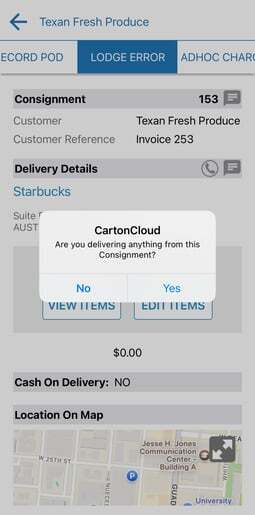
- Select the Lodges Error tab.
- Select No when prompted if you are delivering anyting from the Consignment.
-
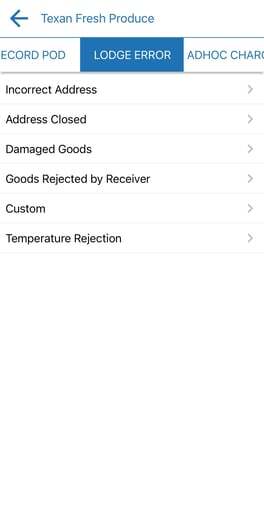
- Select the relevant error reason.
-
- Fill out the relevant information relating to the error and select Save Error.
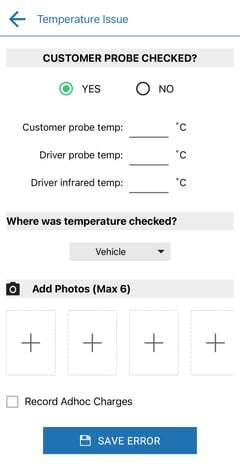
The error will then be visible to admin users within your CartonCloud account.
When the consignment is partially deliverable
- If the Consignment is partially deliverable, select the Record POD tab.
- Update the quantity delivered.
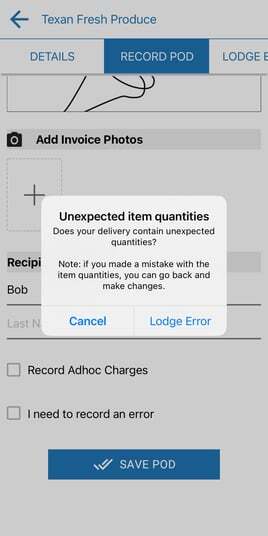
- Select the Save POD button to submit your POD.
- You will be prompted to record an error for the short delivery.
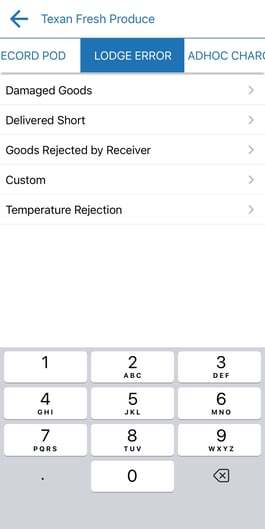
When the Consignment is Deliverable
- Select the Record POD tab
- Update the delivery details.
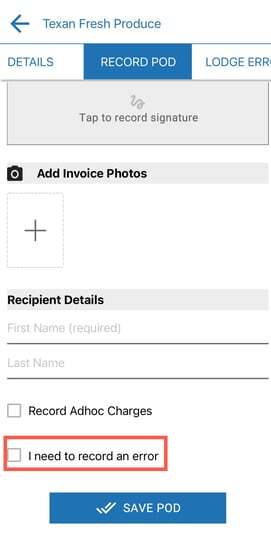
- Tick the I need to record an error box at the bottom of the screen.
Resolving lodged errors
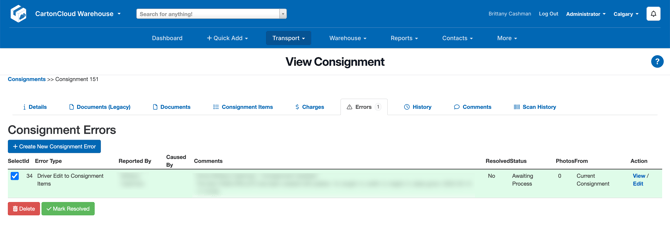
- To resolve Consignment Errors lodged via the driver app, navigate to the Consignment in the CartonCloud web app and select the Errors tab.
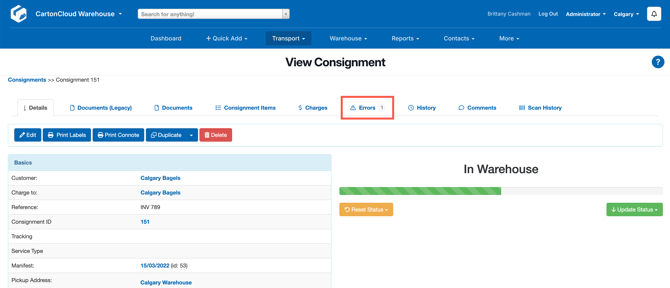
- Within this tab, any lodged error linked to this Consignment will be displayed and can be marked as resolved or displayed in more detail.