
Table of Contents
Purpose
The edit User page allows you to update an already existing User's information and permissions.
How to Edit a User
Note, to be able to edit a User you need the 'Allow this User to edit other users' enabled against your own user. This will need to be enabled by someone with this permission.
- Navigate to the Users page, Contacts>Users.
- Select the User you wish to edit.
- Click Edit.
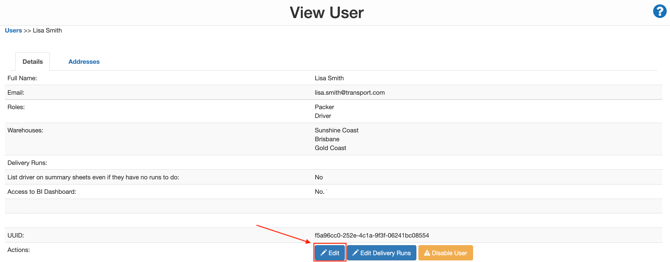
- Edit the fields using the below field descriptions as a guide.
- Select Save.
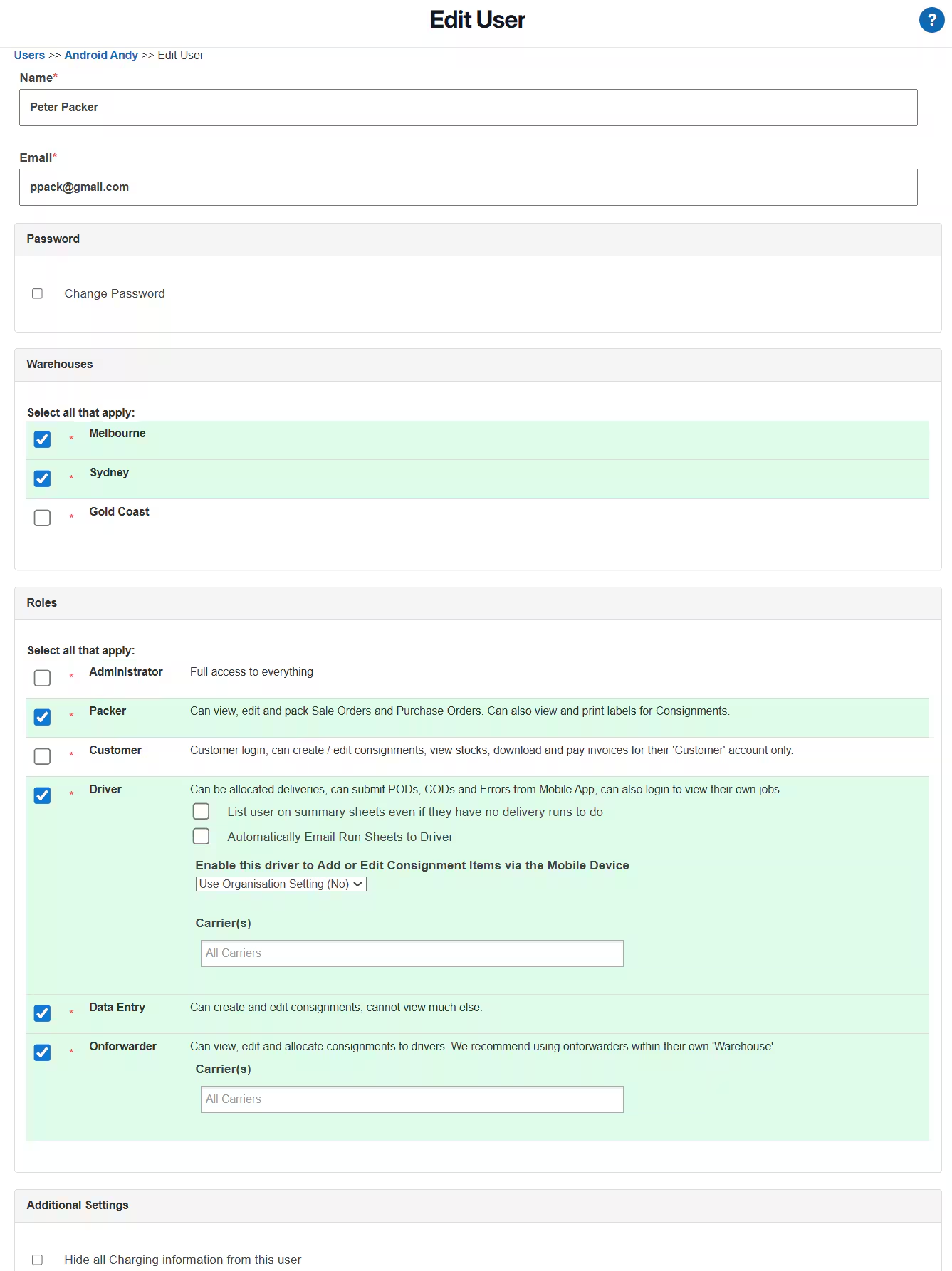
| Name | The user's full name |
| The User's contact email. This is where the invite will be sent to. If you invite rather than create the User, the User will be able to change this themselves when they accept the invitation. | |
| Password | Change the User's password. |
| Warehouses | These are the warehouse the User will have access to. |
| Roles | The roles assigned to the User. This will dictate what information and functionality the User will have access to. For more information please see User Roles Explained |
| Additional Settings | Provides the option to hide all charging information from this user. |
| Subscribe | We recommend leaving this ticked so the User will receive important product updates related to CartonCloud. They are able to unsubscribe at any time if they wish. |
Additional Settings
For each user, you have the option to hide all charging information. This includes:
- The Charges tab will be hidden on Sale Orders, Purchase Orders and Consignments
- Rate Cards will not be visible.
- Invoices will not be visible.
User Role Specific Settings
Some User Roles have specific settings that you can choose to apply.
| User Role | Setting | Explanation |
| Adminstrator | Allow this User to edit other Users | Give access to the Admin user to edit other Users. |
| Adminstrator | Allow access to the BI Dashboard |
This setting is only available if the user has 'Allow this user to edit other users' enabled. This will give the user access to the Business Intelligence Tool if the account has the BI Dashboard enabled. The BI Dashboard is a paid add-on feature. Note, that WMS Premium accounts will have access to unlimited BI Dashboard users, however, for non-WMS Premium accounts additional users will be an additional cost. Please reach out to our Service Desk team if you have any questions. |
| Driver | List user on summary sheets even if they have no delivery runs to do | When enabled, the driver will appear on summary sheets regardless of whether they have delivery runs to complete. |
| Driver | Automatically Email Run Sheets to Driver | When enabled, the driver will be emailed their Run Sheets automatically. |
| Driver | Enable this Driver to Add or Edit Consignment Items via the Mobile Device |
When enabled, the driver will have the ability to add and edit Consignment Items from the mobile app. Setting options: Use Organisation Settings: will apply the settings configured at the Organisation Settings level. Enabled: regardless of the settings configured at the Organisation Settings level, the driver will be able to add and edit Consignment Items via the mobile app. Disabled: regardless of the settings configured at the Organisation Settings level, the driver will NOT be able to add and edit Consignment Items via the mobile app. Please see Add/edit Consignment Items for Drivers on the Mobile App for more information. |
| Onforwarder | Carrier(s) |
Choose which Carriers the Onforwarder will have access to. |