
Table of Contents
Purpose
Based on your selection of Invoicing and Storage Charge settings, CartonCloud will generate the Storage Periods and add these automatically to Customer Invoiced. Sometimes though, there may be instances when you need to manually create and add a Storage Period to the invoice.
For example:
- Storage Settings have been changed within an invoice period
- Purchase Orders have been backdated where the invoice for that period has already been approved for payment
- Storage Charge errors have occurred due to a misalignment of Storage Periods and Invoice Periods
To manually create a storage period
Note a storage period start time will always be 00:00:00, and the end time will be 23:59:59
- To begin, type Storage Periods into Search for Anything!
- Once on the page, select +Add Storage Period
- Enter the details for the Customer and Date.
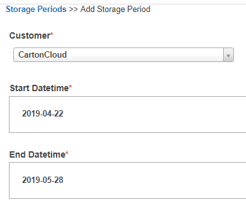
- Then select Create Storage Period and the storage period will instantly be created within the system.
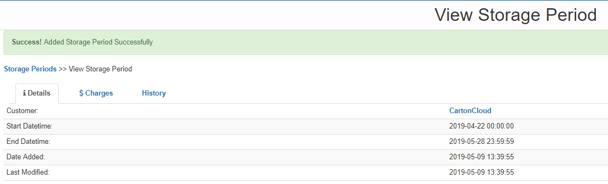
- Once you have created the Storage Period, you can then add it to an invoice.
- To do this, type Invoices in Search for anything!
- Now on the Invoice page select the invoice that you want to add the newly created Storage Period on to.
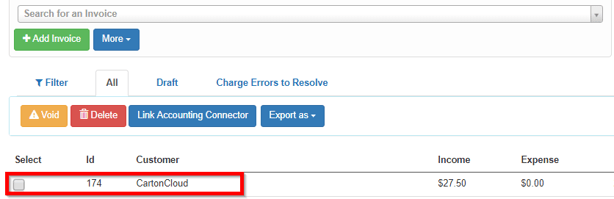
- Once in the selected Invoice, navigate to the Storage Periods tab.

- From there, select +Add Storage Period(s) and select the Storage Period to be added to the invoice.
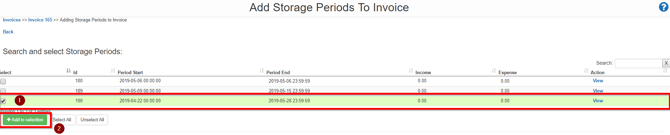
- Confirm the Storage Period to be added and select Add Storage Periods to Invoice.
- You will then be taken back to the details tab of the invoice where you will need to recalculate the invoice totals by selecting Calculate Invoice Totals.