
Table of Contents
- Purpose
- Type of notifications available
- How to set up customer notifications
- Parser failed to upload email notification
- Automated reply notification emails to sender
- Updating customer notifications in bulk (import/export)
Purpose
To set up Customers with email notifications.
Type of notifications available
Please note for orders that have been parsed in the email address sending the file in will receive the notifications for that order regardless if they have the notifications set up or not.
|
Sale Order Notifications |
|
Sale Order Import notification |
|
Send Email when Sale Order is Packed |
|
Send Reminder Email to Customer at 4:30 pm if Sale Order is waiting for Customer Invoice |
|
Send Email when Sale Order is marked urgent by Administrator |
|
Send Email if Sale Order is Rejected Manually (after import) |
|
Send Daily Sale Order report email (at 6:00 pm AEST Mon-Fri) |
|
Purchase Order Notifications |
|
Purchase Order Import notification |
|
Send confirmation email when the Purchase Order is approved from draft |
|
Send Purchase Order Goods Received confirmation email |
|
Send Purchase Order verification email |
|
Send Purchase Order Urgent Email |
Send Purchase Order Allocated Email |
|
Stock Notifications |
|
Send Stock Warning / Expiry Notification Email (at 8:00 am AEST Mon-Fri) |
| Stock Update Notification When a parser updates a stocks status |
|
Consignment Notifications |
|
Send Daily Consignment Report Email (at 8:00 am AEST Tues - Sat) |
|
Manifest Notifications |
|
Attach Labels PDF to Manifest Reply Email |
|
Email notification upon import of new Manifest |
|
Shipment Notification |
|
Shipment Import notification |
|
Proof of Delivery Notifications |
|
Proof of Delivery notification |
|
Proof of Delivery notification for delivery address's email |
|
Product |
|
Product import notification |
How to set up Customer notifications
Note, to set up email notifications, you need to ensure the applicable notifications are selected in the Notifications tab. If you do not make a selection in the Notifications tab, the notifications will NOT work.
-
Navigate to the Customers page, Contacts>Customers.
-
Select the relevant Customer.
-
Click Edit.
-
Select the Email tab.
-
Select the Addresses tab.
-
If the email address is already listed, click Edit against the email address.
-
if the email address does not exist, type the address into the New email field and click Add new email.
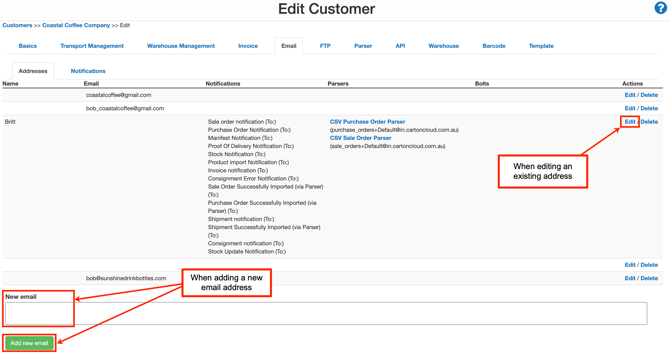
If you are adding a new email address, ensure you enter a name in the Name field.
-
Tick the notifications you wish to enable, as well as the email type (To, CC, BCC).
-
Scroll down to the bottom of the page and select Save.
You need to select notifications within both the Addresses and Notifications tab. Email notifications will not work if you do not select the appropriate notifications from the Notifications tab.
-
Select the Notifications tab. This tab gives you greater control over what type of notifications you wish to enable. For example, if you selected Purchase Order Notifications against the email address in the Addresses tab, you would then need to select what type of Purchase Order notifications you want to enable from the Notifications tab.
-
Tick the relevant Notifications you wish to enable.
If you have ticked a notification against an email address, you need to ensure they are also ticked in the Notifications tab in order for the notification to work.
-
Scroll down to the bottom of the page and select Save.
Parser failed to upload email notification
Within the customer email notifications, you have the option to enable a failed parser email notification. This notification will be sent to the email address if the selected Parser fails to upload (this applies even if it wasn't that email address that sent the parser into CartonCloud). This allows the user to keep track of if orders fail to upload and be able to rectify the issue as soon as possible.
To enable the Parser failed to upload notification:
-
Follow the above steps and when selecting the notifications to set up against the email address, scroll down to Parsers.
-
Tick the Send Failure To box next to the relevant Parser.
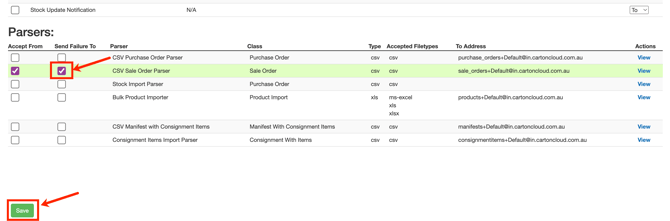
- You will now be able to see in the settings that the email address had the receive failure notification turned on.

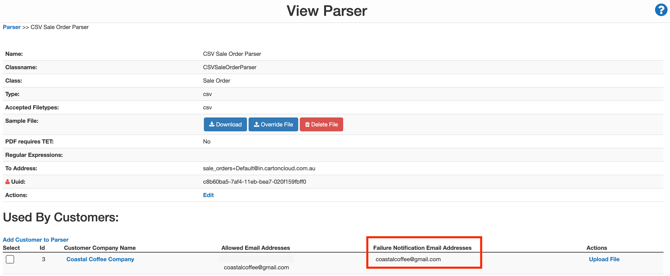
- You will now be able to see against the Parser what email addresses are set up with the failure notification.
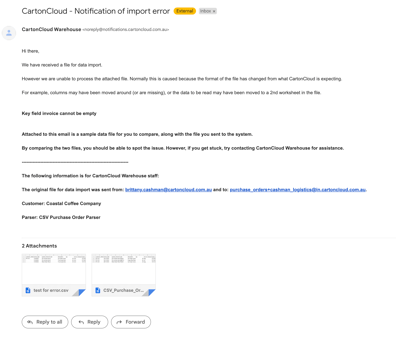
Example error email:
Automated Reply Notification Emails to Sender
When an email is sent to CartonCloud, the sender of the email will always receive all notifications regarding that email.
This means that irrespective of the settings within the Notifications section, the original sender will always receive a reply.
We have done this because it becomes very confusing for the sender to know what happened if they don't receive any reply email.
For example, if Sale Order Notifications were set up to only send an email when an order was Rejected - if the order was successfully processed the user would not receive anything back at all. This makes it very difficult for the sender to know if CartonCloud had even received it.