
Table of Contents
Report overview
The Sale Order Summary Report provides you with a list of all Sales Order data. The Sale Order Summary Report can be used to analyse Sale Order data and sales performance within a particular time frame. The Report can be ordered by Address or Pack Date and then filtered by Date Packed, Date Added or Date Dispatched. You also have the option to include Sale Order Custom Fields, Delivery/Packing Instructions and Comments. In addition, you can use templates when running your reports to save having to manually select the columns you wish to include each time you access the report.
How to navigate to the report
To access the Sale Order Report select Reports in the main menu followed by Sale Order Report in the drop-down menu.
How to run the report
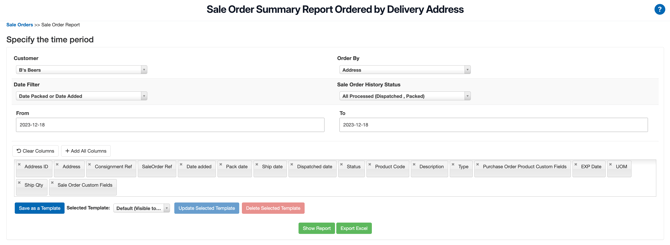
- Select the Customer you wish to run the report for.
- Select how you wish to order the report by either Address (the delivery address of the Sale Order) or Pack Date (date the order was packed).
- Select the Date Filter.
- Date Packed or Date Added: Packed Date is only respected when a date value is set for to and from. When no date is set, both Date Packed and Date Added are respected.
- Date Packed: the date the Sale Order was packed
- Date Added: the date the Sale Order was added to CartonCloud
- Dispatched Date: the date the Sale Order was dispatched
- Select the Sale Order History Status to include in the report.
- All statuses
- All Processed (Dispatched, Packed)
- Draft
- Rejected
- Awaiting Pick and Pack
- Packing in Progress
- Packed
- Dispatched
- Select the From and To date to run the report for.
- Select the Columns you wish to include in the report. Search for a column in the column window or click +Add All Columns to include all columns.
- You can choose to save the report configuration as a Report Template or use an existing template. See Creating Report Templates for more information.
If you run a report with the status Draft, Rejected, Awaiting Pick and Pack, or Packing in Progress (and don't include the status of Dispatched or Packed) you have the option to run the report with no Pack Dates. If you do run the report with no Pack Dates this may cause the report to take some time to run.
If you select a status that has orders which do not have Pack Dates, the report may result in no data being returned. This will also be reflected in any reports you export.
Viewing options
Once you have selected your report configuration you can choose how you wish to view the report:
Show Report
Selecting this option will return the list of Sales Orders on the screen
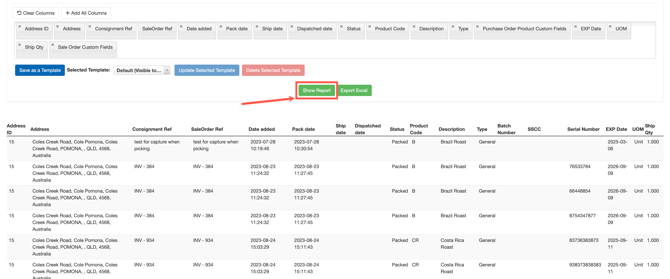
Export Excel
Selecting this option, your report will run in the background 
You will be notified once the report is ready by the bell in the top left of the screen 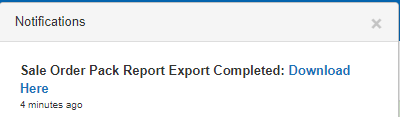
You can then download the file and view in Excel.
Example Report