Table of Contents
Purpose
Please note that if your CartonCloud account was created prior to 1 July 2019 the below functionality may not be available at this stage. If you would like to discuss further, please use CartonCloud Help and lodge a case with our Service Desk.
The Rate Card Report allows you to extract your Warehouse and Transport Rates from CartonCloud into easy-to-read files. You can export rates based on the Customer or the Rate Card itself.
- Transport Rate Card Report can be exported as a PDF
- Warehouse Rate Card Report can be exported as a PDF or Excel file
Exporting a Transport Rate Card Report (PDF)
Please note that if you have a WMS Only CartonCloud account, you will not have access to Exporting a Transport Rate Card Report
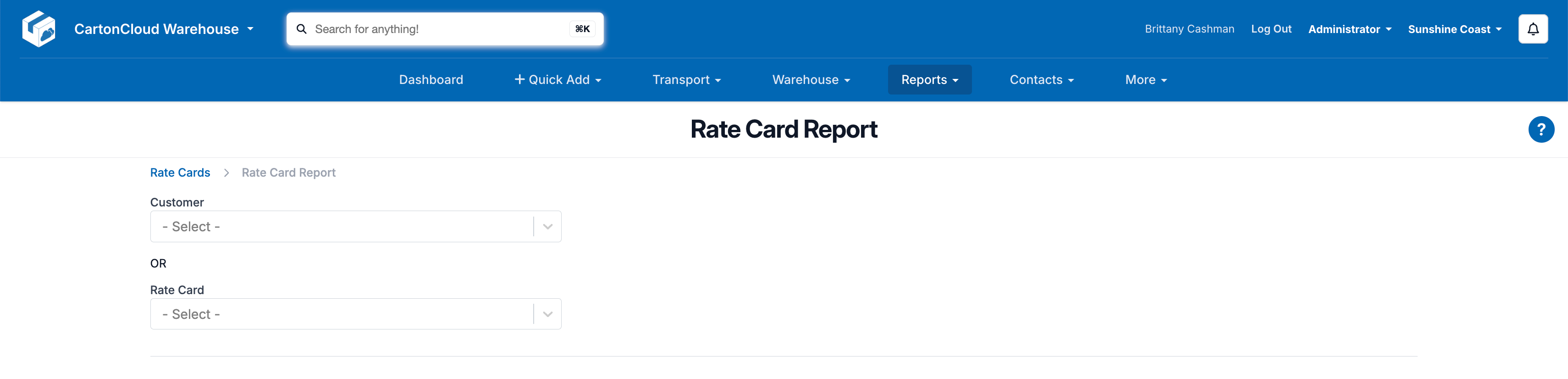
- Navigate to Reports > Rate Card Report.
- Select a Customer or a Rate Card to run the report off.
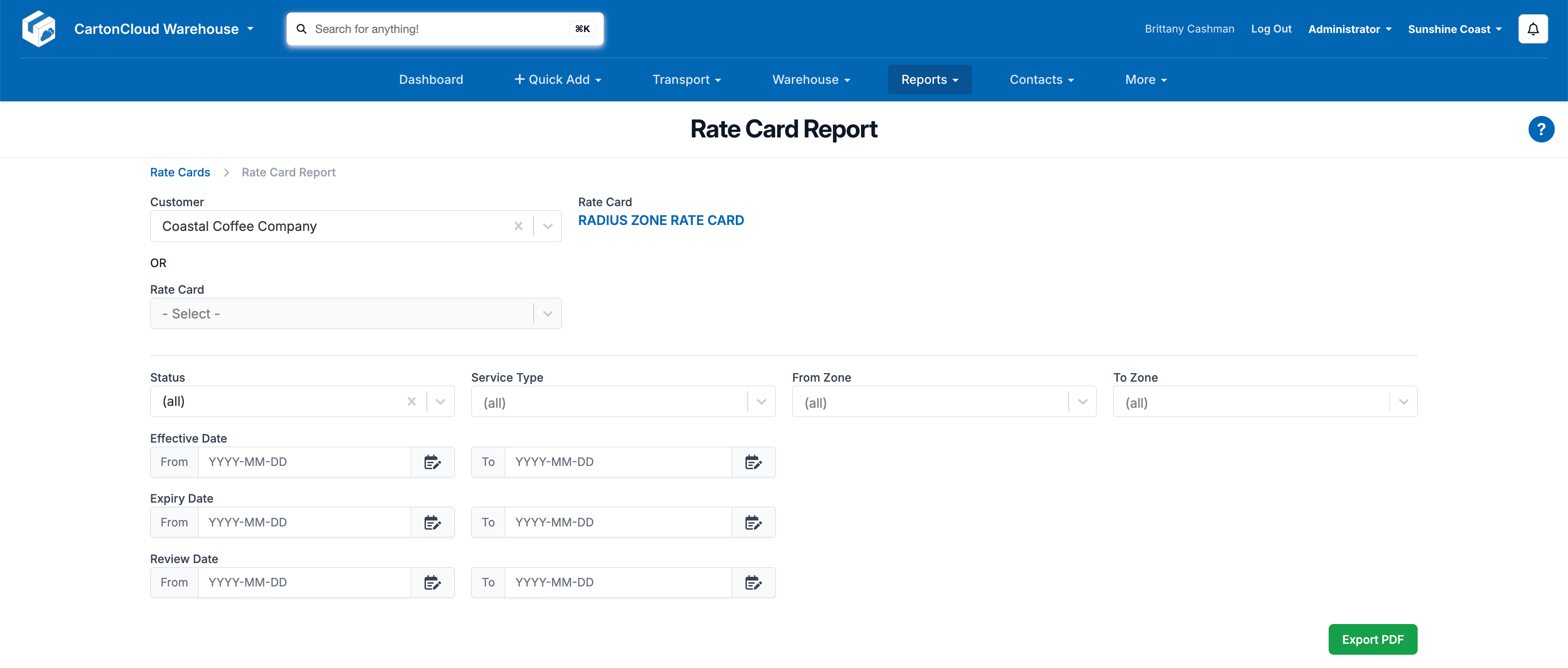
- If you wish to specify only certain rates to be exported , use the filters provided.
- Select Export PDF.
Cascading Rates
If you have cascading rates set up against a rate card then the secondary Rate Card will be included in the Rate Schedule. It will appear underneath the Rate Card you have selected. The cascaded rates title will appear at the top left of the page to allow you to identify when the schedule changes from listing rates from one Rate Card to another.
Example Transport Rate Card report output
The below page is an example of what the Rate Card Report will look like once generated for a Customer. Please note the Logo, Address and other company information will populate based on what you have set up within your Organisation Settings (so your company's logo will appear instead).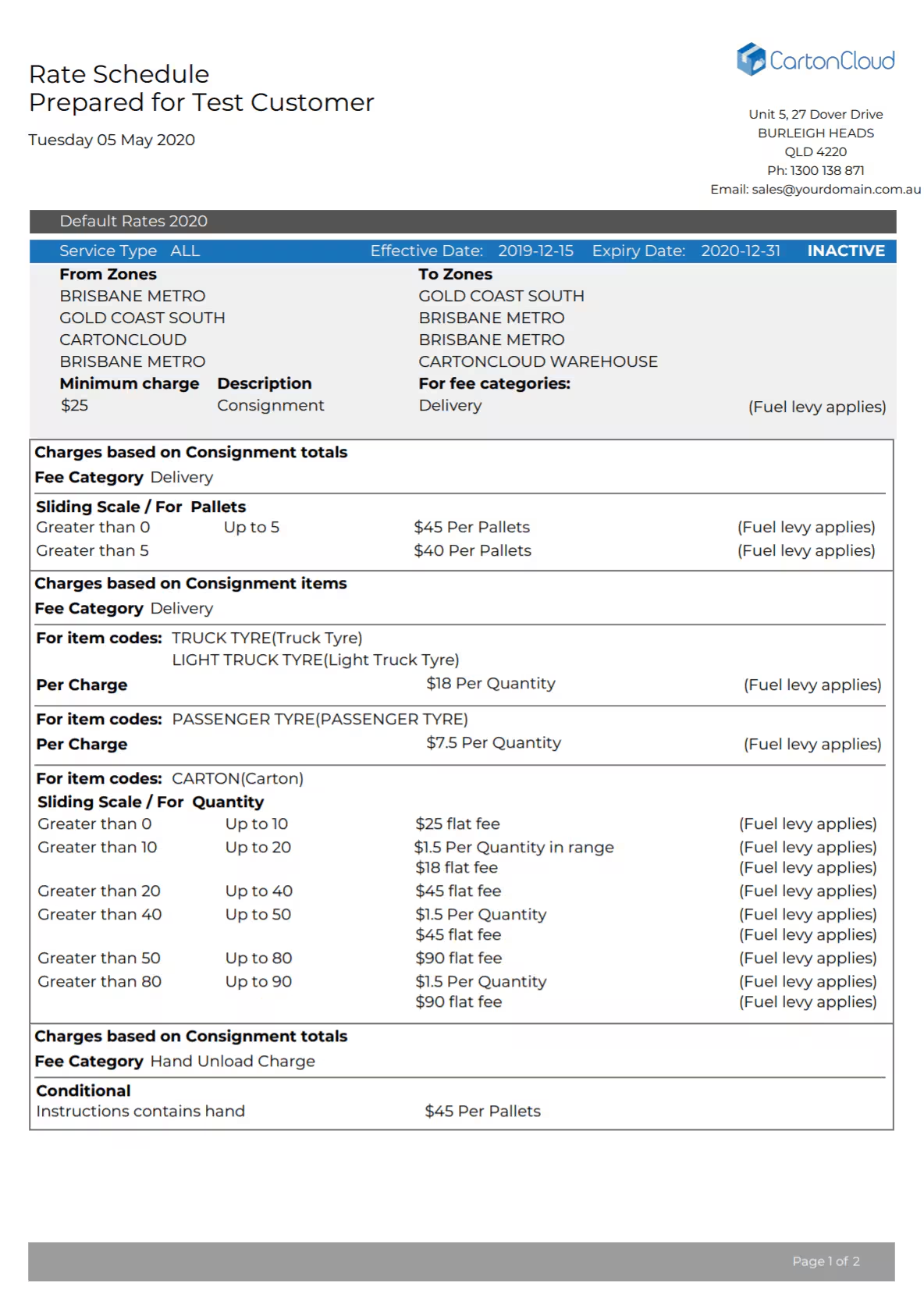
Exporting a Warehouse Rate Card Report (PDF or Excel)
Please note that if you have a TMS Only CartonCloud account, you will not have access to Exporting a Warehouse Rate Card Report
How to run the report
-
Select the Customer or Rate Card you wish to run the Report for
- For PDF, click Export Rate Card PDF
- For Excel, click the down arrow and Export Rate Card Excel
As these are WMS Rates the Status, Service Type, Zone and Date filters are not relevant, and do not effect the output of the exported file
What the report displays
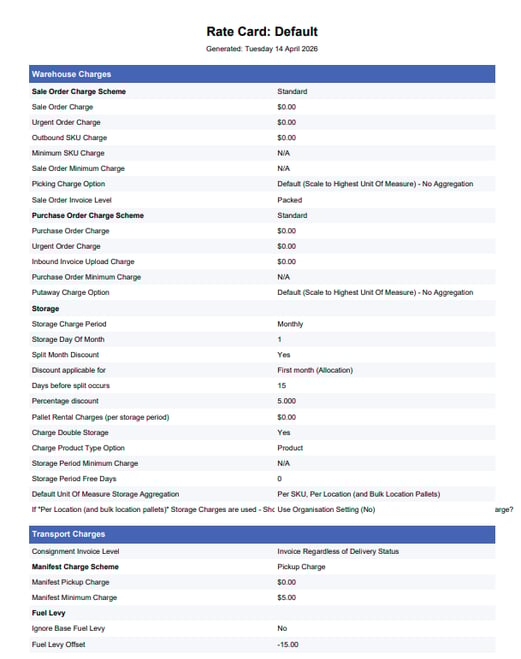
The Warehouse Rate Card displays all Rates and Settings from the following tabs of the relevant Rate Card:
- Details
- Adhoc Charges
- Storage Charges
- Handling Charges
Example page (PDF)