
Table of Contents
- Purpose
- Viewing the Import Log
- Understanding and interpreting the Import Log
- Filtering the Import Log
- Reprocess emails
- Downloading attachments
Purpose
The Import Log provides a history of all orders coming into CartonCloud via a parser or the API. The Import Log can be utilised to diagnose issues with the import of the order or to verify what orders have been imported.
Viewing the Import Log
- The Import Log can be accessed by selecting More in the main menu, then Import Log in the drop-down.
- From there, you can see all orders that have been received by parser or the API up to 30 days ago.
Understanding and interpreting the Import Log
From the Import Log you can see if an order was successful, successful with warnings, successful with errors or failed. You are then provided detail relating to what the warnings, errors or failure were due to.
- Success (green tick): the order has been successfully processed with no issues
- Success with warnings (green tick with yellow warning symbol): the order has been successfully imported, however, with minor issues such as an incorrect product code or insufficient stock.
- Success with errors (green tick with red error symbol): the order has been successfully imported, however, with more serious issues, such as an invalid quantity or invalid warehouse location.
- Failure (red cross): the order has failed and not been imported. There are major issues preventing the order from being successfully imported.

The error code status mappings will help you understand what type of error will warrant a warning or error message upon import.
Error code status mapping
Sale Order
| Error | Status (Success with warning or error) |
|
Remove lines with blank product codes |
Warning |
|
Remove lines with not enough stock |
Warning |
|
Remove lines with zero quantity |
Warning |
|
Remove lines with failed conversions |
Warning |
|
Remove lines with invalid conversions |
Warning |
|
Unit of measure adjusted to default UOM |
Warning |
|
Remove lines with invalid UOM |
Warning |
|
Line item has expired |
Warning |
|
Before expiry threshold |
Warning |
|
After expiry threshold |
Warning |
|
Not enough stock use available stock |
Warning |
|
MLOR per address expiry multiple address for address code found |
Error |
|
MLOR address not found |
Error |
|
MLOR expiry threshold |
Error |
|
Unable to parse |
Error |
|
Multiple products found for line item |
Error |
|
Missing product code reject |
Error |
|
Not enough stock reject |
Error |
|
Invalid quantity (non-positive number) |
Error |
|
UOM conversion failed reject |
Error |
|
UOM invalid reject |
Error |
Purchase Order
| Error | Status (Success with warning or error) |
|
Product code available (item removed) |
Warning |
|
Product code available (reject order) |
Error |
|
Product expiry invalid |
Error |
|
Product quantity invalid |
Error |
|
PUOM unit invalid (item removed) |
Warning |
|
PUOM unit invalid (reject order) |
Error |
|
PUOM unit invalid (substitute with default UOM) |
Warning |
|
Warehouse location invalid |
Error |
|
Warehouse location cannot handle product type |
Error |
|
Custom field invalid type |
Error |
|
Custom field non unique |
Error |
Filtering the Import Log
The Import Log can be filtered by Source, Recipient, Message, Status, Type and the time it was logged at. These filter options make it easier to find the import you are looking for.
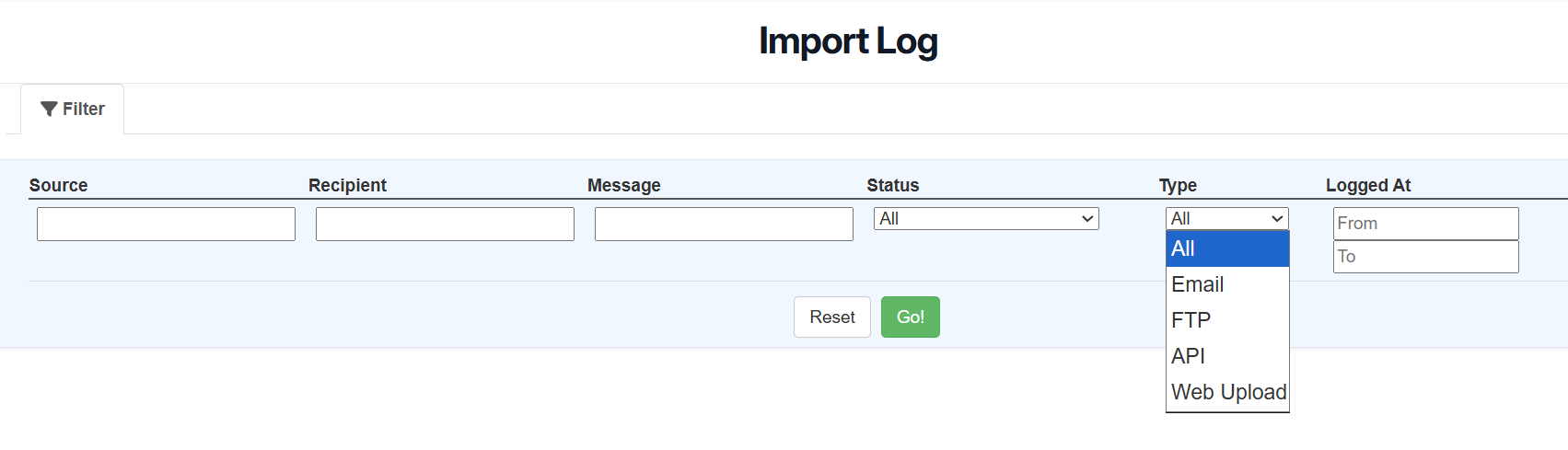
The Type filter allows you to narrow results to a specific integration channel. Select one or more of the following options from the Type dropdown to filter the log:
Email — displays imports received via email parser
FTP — displays imports received via FTP
API — displays imports received via the CartonCloud API
You can select multiple types simultaneously to view entries across more than one channel. To reset the filter and view all entries, clear your selections from the Type dropdown.
Reprocess Emails
If you have a particular parser import which was unsuccessful for some reason (email address not setup, parser not configured etc), then you can reprocess an email directly from within the Email Parsing Log by simply clicking the "Reprocess" button:
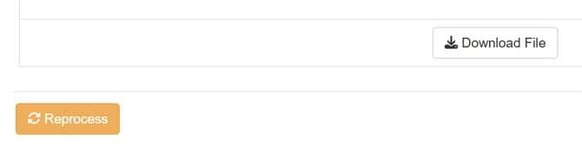
This will re-process the job, and provide you with the result once completed.
Downloading Attachments
You can download the attachments from the email by clicking the "Download Attachments" button.
This will download a zip file that contains all of the attachments that were within the original email.