
Table of Contents
Purpose
Within the CartonCloud mobile app, the search integrated into the consignment list view enables user to quickly locate consignments based on certain search criteria.The search bar is located above the consignment list and can be activated by tapping on any part of the white text field.
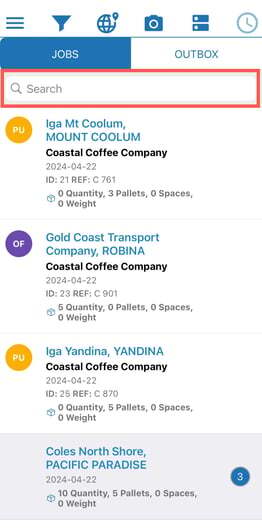
As you start typing your search term into the now active text field, the consignment list will automatically be filtered to only show those consignments that fulfil your search criteria. Additionally, the matching text will be highlighted for each consignment in the list view if applicable. Please note that the search is case-insensitive.
- To cancel a search, simply press the “Cancel” button to the right of the search text field
- To clear a search term, select the “X” within the text field, on the right-hand side. This “X” will only appear once you have started entering a text into the search field.
Search Criteria
Currently, the list search allows you to search for matching text in:
-
Consignment Customer Name
-
Consignment Address / Suburb
-
Consignment Id
-
Consignment Reference
Grouped Consignments
Consignments that are normally automatically grouped by address group will be displayed as individual search results while performing a search.
Available Functionality
While in search mode, some list view actions will not be available, while others operate as normal.
Please see Consignment List View for more information on all available list actions.
Unavailable
-
Drag and Drop: Consignments cannot be dragged & dropped while in search mode
-
Lock / Unlock: Consignments cannot be locked into their position / unlocked form their position while in search mode.
Available
-
Select Consignment: On selecting a consignment, the corresponding consignment detail view will be shown, as per normal list view behaviour.
-
Record POD: Available on swiping on a consignment list row as normal.
-
Grouping: Consignments can be grouped as normal, by selecting the grouping button from the top bar.