
Table of Contents
Purpose
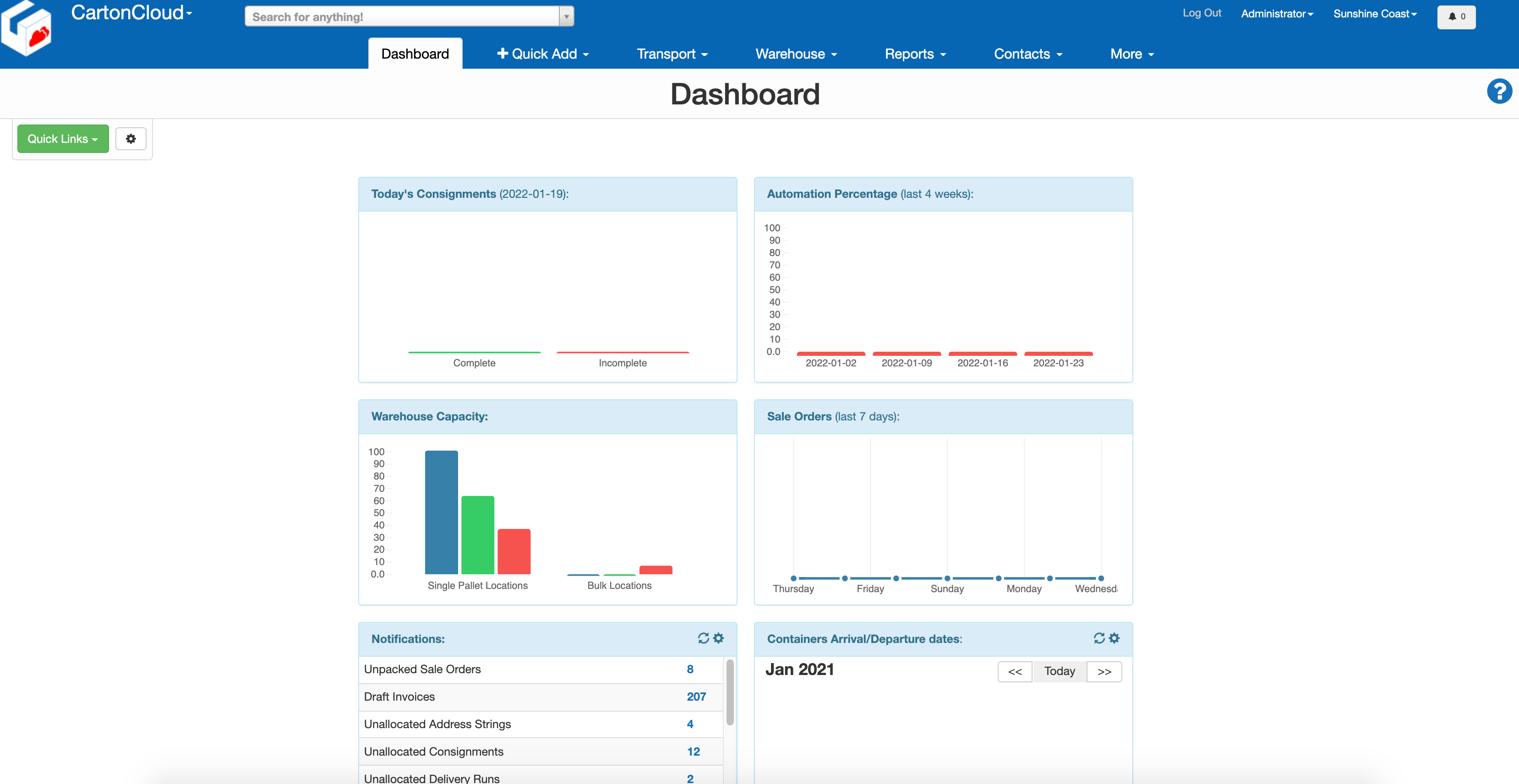
The Dashboard gives you an overview of information tracked by CartonCloud. In addition, you can select which widgets (different information) you would like displayed on your Dashboard.
Widgets
Available Widgets
|
WIDGET |
Description |
Administrator |
Customers |
|
General Info |
|
Yes |
No |
|
Total Consignments for last 7 days |
Retrieves the number of consignments for the week. |
Yes |
Yes |
|
Undelivered Consignments today |
Retrieves the total of delivered/undelivered consignments for the current day. |
Yes |
Yes |
|
Sale Orders History |
Shows Sale Order processing performance over a 7-day scale. |
Yes |
Yes |
|
Warehouse Capacity |
Retrieves a breakdown of warehouse capacity by Single/Bulk pallet locations. Blue: Bulk/Single Pallet Locations Total |
Yes |
No |
|
Invoicing |
|
No |
Yes |
|
Customers Pallet Count |
Visualises pallet occupancy over multiple weeks. Defaults to 8 weeks. |
No |
Yes |
|
Containers Arrival/Departure Dates |
Provides a comprehensive calendar view of container movements, tracking both incoming and outgoing containers specific to the current Warehouse. The dates are tracked using configurable custom fields, and the data calculated based on the dates found in the custom fields selected as the arrival and departures date fields. |
Yes |
No |
|
Automation |
Provides an overview of automation efficiency, tracking the percentage of automated processes over a 4 week period. An “automated process” is defined as one which was completed without manual intervention or direct human involvement, and this data is derived from Consignment processing and Sale Order handling |
Yes |
No |
|
Latest Releases |
To help you stay up to date with new CartonCloud features and improvements. This widget displays the most recent product updates so that you can see what’s new without leaving your workspace. The update will link to the full release log, where you can read more. |
Yes |
Yes |
How to add a Widget
-
Navigate to the Dashboard page, More>Dashboard.
-
Select the cog icon in the top left corner.
-
By default, all widgets will be enabled. To disable a widget, untick the select box.
-
Select Add to save the changes.
Rearrange Widgets
To change the order in which the Widgets are arranged:
-
Select the cog icon in the top left corner.
-
Using the Order column, adjust the numbers against the widgets accordingly.
-
Click Save.
Remove Widgets
To remove widgets from the Dashboard:
-
Select the cog icon in the top left corner.
-
Untick the widget you wish to remove.

- Click Save.