
Table of Contents
- Purpose
- Adding or editing an email to receive notifications
- Deleting an email from receiving any further notifications or having access to parers
Purpose
From the Addresses tab, you can add and delete emails that receive notifications and edit the notification they will receive.
Adding or editing an email to receive notifications
- Navigate to the Customers page, Contacts>Customers.
- Select the relevant Customer.
- Click Edit.
- Select the Email tab.
- Select the Addresses tab.
- If the email address is already listed, click Edit against the email address.
- If the email address does not exist, type the address into the New email field and click Add new email.
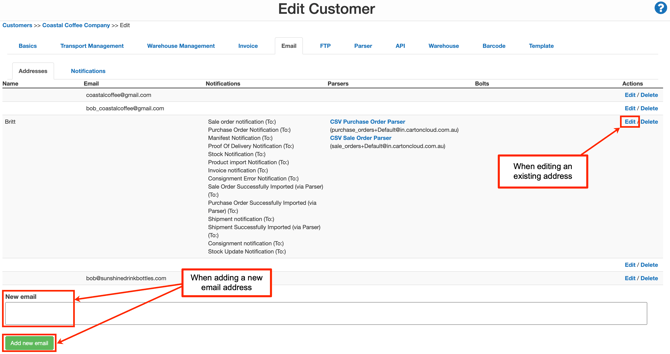
- Tick the notifications you wish to enable, as well as the email type (To, CC, BCC).
Important:
Selecting notification types here defines which emails this contact can receive, but the notifications must also be enabled and scheduled. See Customer Settings – Email Notifications for further details.
- To review or update when notifications are sent, click the Notifications tab within Customer Settings.
- Ensure the relevant notification (e.g. Send Stock Warning / Expiry Notification Email) is enabled and scheduled.
If a notification is selected here but not enabled in Notifications, the email will not be sent.
- If you wish the email address to be able to send orders through via a Parser, you need to tick Accept From against the relevant Parser.
- If you would like the email address to receive an email notification if the Parser fails, you need to tick Send Failure To.

- Select Save.
Deleting an email from receiving any further notifications or having access to Parsers
- To do this, select Delete next to the appropriate email.
- Then on the pop-up window, select OK.
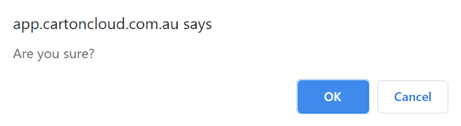
- The email will now disappear from the list and will immediately no longer receive notifications or send emails into the system for Parsers.