
Table of Contents
Purpose
How to create a Zone Set and applicable Zones within the Zone Set.
How to create a Zone Set
1. Create a Zone Set
- Navigate to the Zone Sets page by typing in Zone Sets into the Search for anything bar.
-
Once on the Zone Sets page, Select +Add Zone Set in the top left corner.
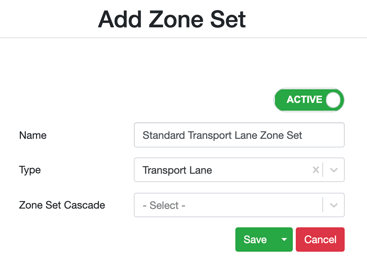
- You will then need to fill in the Name and Type fields, as seen in the below example.
-
If you are going to be using the Zone Set immediately, select the toggle (in the top right corner) to make it active.
-
If you are creating a Zone Set Cascade, see the Zone Set Cascade section of this article. Otherwise, leave this option blank.
Once you have created your Zone Set you will be directed to the Zone Set configuration page. You will see the Zone Hierarchy panel on the left-hand side (image below), this is where you will create your zones and define the hierarchy of those zones.
The purpose of defining a zone hierarchy is that it informs CartonCloud which zones are contained within each other. For example, in the image below a zone has been created for the Gold Coast area. Within this parent zone, five child zones have been created to define the areas within the Gold Coast.
Zone Hierarchy Panel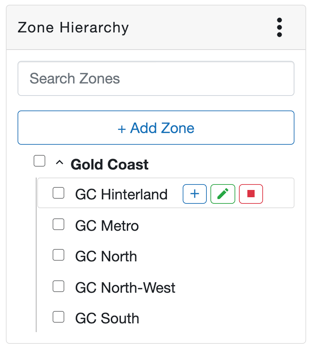
|
Button |
Function |
|
Three dot icon |
|
|
Search Zones |
Search bar to find the zone you are looking for. |
|
+ Add Zone |
To add a new zone. |
|
Blue plus icon |
To add a child zone to the select zone. |
|
Red square icon |
To deactivate a zone when they are no longer in use. You can not delete a zone entirely (as it may be associated with historical data), therefore, you must deactivate the zone if you no longer wish to use it. |
|
Green edit icon |
To edit the zone. From here you can reactivate/deactivate a zone and change the zone name. |
2. Add Zones
To add a new zone, you can either (a) add a single zone or (b) create zones in bulk using the export/import function.
(a) Adding a single-zone
-
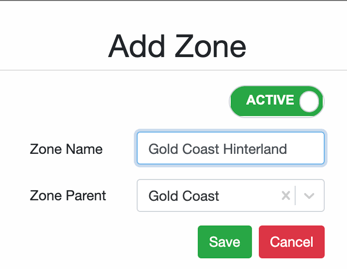
Use the Zone Hierarchy panel and click + Add Zones.
-
The Zone Hierarchy panel allows you to define a zone hierarchy with parent zones and child zones. Child zones are contained within a parent zone.
-
Name the zone and if it falls within the geographic boundaries of another zone, for example, Gold Coast, set that zone as its parent.
Once you have created all relevant zones your Zone Hierarchy should resemble something similar to the Zone Set Hierarchy below: 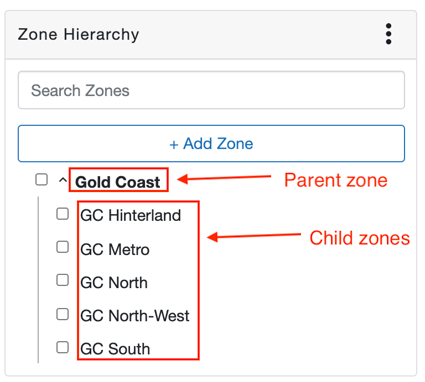
(b) Creating zones in bulk - using the export/import function
If you have numerous zones to create, you can save time by creating the zones in bulk by using the export/import function. This function enables you to export zones to an XLS sheet, add new zones within the sheet, then import them back into CartonCloud.
Follow the below steps to add new zones through the export/import function:
-
Select the 3 vertical dot icon in the top right of the Zone Hierarchy panel and select Export xlsx.
-
The red bell at the top right of the page will notify you when the export file is ready.
-
Select the bell icon then Download here.
-
Open the file in Excel or your chosen spreadsheet editing software.
-
To add new zones fill in the name, parent (if you have an applicable parent zone to associate it with), and status column (type in either active or inactive).
-
Do not change the id column when updating or creating new zones.
-
Children zones cannot be associated with a parent zone that has not already been created in CartonCloud. Therefore, ensure you have created the applicable parent zone within CartonCloud before exporting.
-
Once the file is saved and ready to be imported, select the 3 vertical dot icon, then Import and select the file.
-
You will be notified of completion through the red bell at the top right of the page.
-
Review the import results to check if all zones were created/updated successfully, or review any errors that may have occurred.
Zone Set Cascades
Cascading Zone sets allow you to chain multiple Zone Sets together so that if a consignment fails to find a Zone on the first Zone Set, it will then check the Cascade Zone Set.
This functionality is currently only possible with Income Zone sets (as you can only have a single Transport Zone Set).
Next Step - Creating Location Entries